
FAQs & Knowledge
FAQ Setup
FAQs & Knowledge
FAQ Setup
FAQ Setup lets you add, organize, and manage FAQs that are shown to users and used by the chatbot to answer questions. These FAQs can appear as clickable options on the chatbot, be matched automatically when users ask similar questions, and be reused across website, WhatsApp, and other channels.
How FAQ Setup Works
- Select an existing FAQ or create a new one
- Write a clear question users would naturally ask
- Add a short, helpful answer
- Assign a path or category (optional)
- Save and activate
Best Practices for FAQ Setup
- Use natural language (how users actually ask)
- Keep answers short and conversational
- Avoid long paragraphs
- Focus on clarity, not marketing copy
Recommended FAQ Categories
- Product & Features
- Ads & Lead Generation
- Pricing & Trial
- Setup & Integration
- Support & Troubleshooting
Accessing the FAQ Dashboard
Step 1: Login to Your Account
- Navigate to the AI Chat Assist platform login page
- Enter your credentials (email and password)
- Click the “Login” button
Step 2: Access the FAQ Section
- Once logged in, locate the sidebar navigation menu on the left side of the dashboard
- Find and click on the “FAQ” tab in the sidebar
- This will open the FAQ dashboard where you can manage all your chatbot’s frequently asked questions
FAQ Dashboard Interface
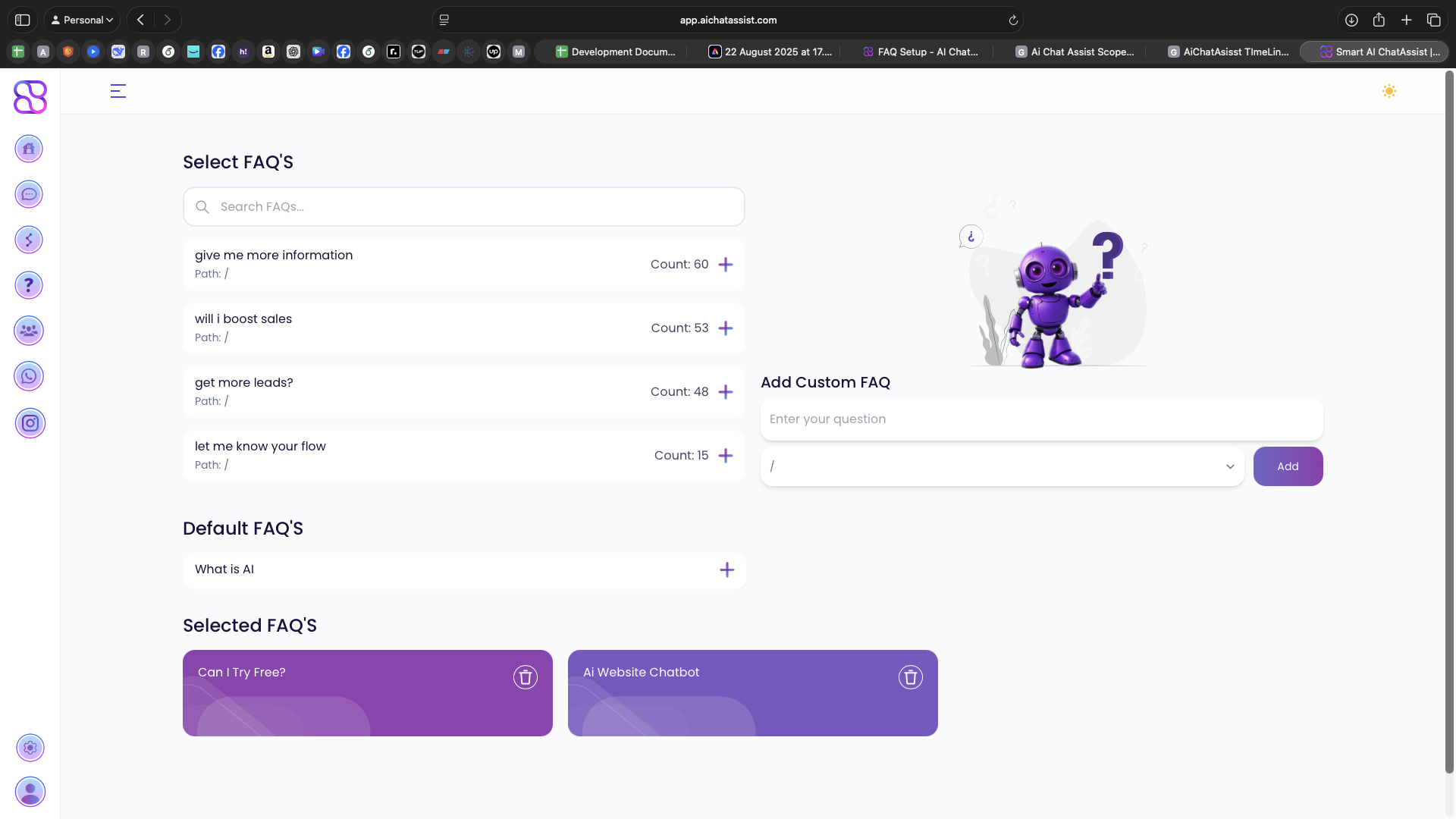
The FAQ dashboard is divided into three main sections:
1. Suggested FAQs Section
This section displays frequently asked questions identified by the system:
- Search Bar: Filter questions using the search input at the top
- FAQ List: Scrollable list showing questions with their paths and frequency count
- Add Button: Each question has a ”+” button to add it to your selected FAQs
Note: The system automatically tracks question frequency and displays a count for each suggested FAQ.
2. Custom FAQ Section
Add your own custom FAQs to the system:
- Question Input: Enter your custom question (limited to 5 words and 25 characters)
- Path Dropdown: Select the appropriate path for the question
- Add Button: Click to add your custom FAQ to the selected list
3. Selected FAQs Section
Displays all FAQs currently active in your chatbot:
- Visual Cards: Each FAQ is displayed as a colorful card with a unique pattern
- Remove Option: Each card has a delete button to remove the FAQ from your selection
- Empty State: Shows “No FAQs selected yet” when no FAQs have been added
Managing Your FAQs
Adding Suggested FAQs
- In the Suggested FAQs section, browse through the list of questions frequently asked by users
- Each suggestion shows:
- The question text
- The path where the question was asked
- A count showing how many times this question has been asked
- Click the ”+” button next to any question you want to add to your chatbot
- The system will show a loading spinner while adding the FAQ
- Once added, the FAQ will appear in the Selected FAQs section
Adding Custom FAQs
- In the Add Custom FAQ section:
- Enter your question in the input field (maximum 5 words and 25 characters)
- Select the appropriate path from the dropdown menu
- Click the “Add” button
- The system validates your question and shows an error message if it exceeds the limits
- Once added, your custom FAQ will appear in the Selected FAQs section
Managing Default FAQs
The system provides a set of default FAQs that you can add to your chatbot:
- Scroll down to the Default FAQs section
- Browse through the list of pre-defined FAQs
- Click the ”+” button next to any default FAQ you want to add
- The system will add it to your Selected FAQs section
Removing FAQs
- In the Selected FAQs section, locate the FAQ you want to remove
- Click the delete icon (trash can) in the top-right corner of the FAQ card
- The system will show a loading spinner while removing the FAQ
- Once removed, the FAQ will disappear from the Selected FAQs section
FAQ Organization and Display
Path-Based Organization
FAQs are organized by paths, which represent different sections or topics in your chatbot:
- Each FAQ is associated with a specific path (e.g., ”/”, “/support”, “/pricing”)
- This helps the system determine when to show specific FAQs based on the user’s current location in the chat flow
- When adding a custom FAQ, select the most relevant path from the dropdown menu
Visual Representation
The Selected FAQs section displays your FAQs as colorful cards:
- Each FAQ card has a unique background color and pattern
- The FAQ intent (question) is displayed prominently on the card
- Cards are arranged in a responsive grid layout (3 columns on desktop, fewer on mobile)
- Hover over a card to see a subtle animation effect